
Stream live with a swapped face: the full webcam-to-broadcast pipeline
A real-time face swap reaches a live stream through one bridge: OBS Virtual Camera. You run a swap tool on your webcam feed, send its output to that virtual webcam, and select it as the camera inside Twitch, YouTube or Facebook. The platform never knows it is reading a swapped feed. The whole job is four parts: pick a tool that matches your OS and GPU, install it, wire it into OBS Virtual Camera, then keep it stable for the length of the broadcast.
The hard part is not the first swap. It is the third hour, when the mask drifts, the GPU heats up, and frames start dropping. This guide treats the swap as a streaming pipeline, not a party trick.
What you need before you go live
Install OBS Studio first. It is the bridge to every platform, and its Virtual Camera is the piece that turns a swapped feed into something Twitch or YouTube will accept. Everything downstream depends on it.
Your hardware decides whether the swap runs smoothly or stutters. On Windows you want an NVIDIA RTX-class GPU; Swapface recommends an RTX 4070 Ti or higher for optimal real-time performance. On Mac, Apple Silicon (M1, M2 or M3) does the work on-chip. Detection quality also rides on your input, so a decent webcam and bright, even front lighting matter more than people expect.
Plan the face before you install anything. Most tools take a single target photo or a preset, so have a clear, front-facing image of the persona ready. A blurry or side-angle source produces a worse swap no matter how strong your GPU is.
- OBS Studio, installed and launched at least once so Virtual Camera is available.
- A GPU that can keep up: NVIDIA RTX-class on Windows, or Apple Silicon on a Mac.
- Good front lighting and a webcam the swapper can lock onto cleanly.
- One prepared swap-target photo, sharp and facing the camera.
Pick the tool that matches your OS and GPU
Your operating system and how much setup you can stomach narrow the field fast. There is no single best tool, only the right one for your rig.
On a Windows machine with an NVIDIA card, run a local swapper like Deep-Live-Cam or DeepFaceLive on the CUDA execution provider. Nothing leaves your PC, the code is open for review, and you trade a Python install for full control. On an Apple Silicon Mac, VidMage runs natively on M1/M2/M3, or you can use MacFaceSwap with its documented OBS Virtual Camera output path.
No GPU, or a locked-down work laptop? A browser route skips installation entirely. Wefaceswap, Akool and Swapstream run the swap in the cloud or on-device and need only webcam permission. And if your real goal is reach, Swapstream is the pick that pushes to multiple channels and custom RTMP at the same time.
| Your setup | Route | Tools |
|---|---|---|
| Windows + NVIDIA GPU | Local, on-device | Deep-Live-Cam, DeepFaceLive (CUDA) |
| Apple Silicon Mac | Native on-chip | VidMage, MacFaceSwap |
| No GPU / no install rights | Browser or cloud | Wefaceswap, Akool |
| Multistreaming to many channels | Cloud with custom RTMP | Swapstream |
Local Windows route: install and run Deep-Live-Cam
Deep-Live-Cam is the most popular open-source local live swapper, and it is the route privacy-minded streamers reach for. Clone the repository and install its dependencies on Python 3.10 or 3.11. Older or newer Python versions are where most install failures start, so pin the version before you touch anything else.
Next, download the ONNX models, roughly 300MB in total, including the inswapper_128 model that does the actual face swap. Deep-Live-Cam uses single-image inference with inswapper_128 plus GFPGAN v1.4 restoration, so one clear target photo is enough to drive the whole stream. Drop the model files into the path the project expects.
Launch with the CUDA execution provider to put the work on your NVIDIA GPU. The same build also accepts CoreML or DirectML if you are not on CUDA, but CUDA is what gives a Windows NVIDIA rig its frame rate. Load your target image, point the app at your webcam, and you have a swapped preview.
Hit a
Error: inswapper_128.onnx should existmessage at launch? The model never finished downloading or sits in the wrong folder. Re-download the ~300MB model pack and place inswapper_128 in the exact models directory the repo names; the error clears once the file is where the loader looks.
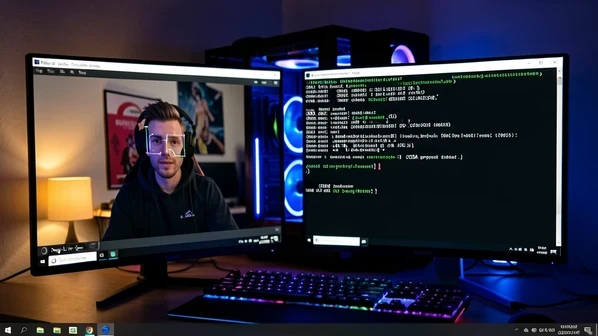
Wire the swapped feed into OBS Virtual Camera
This is the step that makes every tool work for streaming. The swap has to become a selectable camera, and OBS Virtual Camera is how that happens. The mechanic is the same whether you run Deep-Live-Cam, VidMage or MacFaceSwap.
- In OBS, open Tools and click Start Virtual Camera.
- In your swap tool, set the output to Virtual Camera, then click Start Processing.
- Open the app you stream from and select OBS Virtual Camera as the camera source.
- For a browser tool, grant webcam permission first, then pick a preset or upload your face before capturing the tab in OBS.
MacFaceSwap documents this exact path: start the virtual camera, choose a preset, select Virtual Camera Output, click Start Processing, then pick OBS Virtual Camera in your target app. If the virtual camera does not appear in your streaming app, it is almost always because OBS has not started it yet, or the OS still needs to grant camera permission to the app reading the feed.
Go live: connect to Twitch, YouTube or Facebook
With the swap running into the virtual camera, the broadcast step is ordinary streaming. Enable the swap, then connect your tool to OBS through Display Capture or a stream key. Amigo AI, for one, has you turn on face swap and link it to OBS by Display Capture or a stream key, then go live on Twitch, YouTube or Facebook with your chosen face.
From there, drop your platform's stream key into OBS settings and start streaming, or use a direct go-live integration if your platform offers one. The swapped feed flows out exactly like any webcam stream. Want to switch personas between scenes? Load a different target face in the swap tool and the change carries through the same virtual camera without restarting OBS.
If you broadcast to more than one place, Swapstream pushes a single swapped feed to multiple channels and custom RTMP destinations at once, so one persona reaches every platform without running parallel encoders.
Keep the swap stable through a long stream
A swap that looks perfect in a thirty-second test can fall apart over a multi-hour broadcast. The failures are predictable, and each has a mechanical cause you can fix at the source.
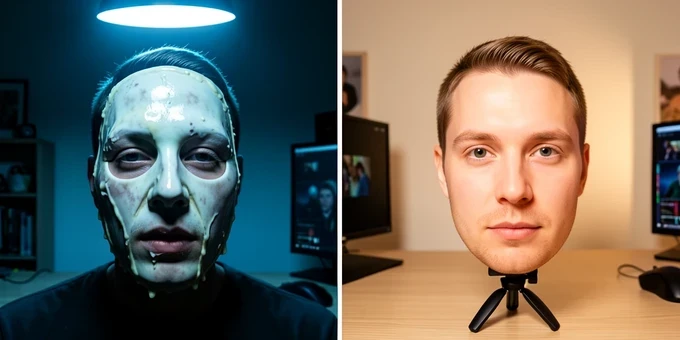
Flicker, melted masks and identity drift almost always trace back to the input. When the face detector loses your features on a head turn or under uneven light, it guesses, and the mask edges smear or the identity slips toward someone else. Brighten and flatten your front lighting so the detector keeps a steady lock through movement. That single change fixes most of the visual noise people blame on their GPU.
The other long-session killer is heat. As the GPU or chip warms over hours, it throttles, and frame rates fall. Apple Silicon handles this well: VidMage runs natively on M1/M2/M3 and keeps resource usage steady even across two-hour and three-hour streams. On a Windows tower, keep airflow clear and watch your temperatures rather than cranking resolution. A realistic target for a live swap is around 30fps at 720p, a figure a Faceswap.dev practitioner reports hitting, so do not chase 1080p60 and then wonder why frames drop.
One input upgrade beats most software tweaks. Feed your face from a phone using iVCam or Iriun instead of a cheap USB webcam. The phone's sensor delivers cleaner, sharper frames, and a sharper input gives the swapper less to guess at, which means fewer artifacts before you change a single setting.
Stay legal: disclosure, consent and platform rules
Streaming with a swapped face is fine when you are honest about it. Tell your participants and viewers you are using face-swap technology; MacFaceSwap's own guidance is to respect privacy and inform other people on the call or stream. Disclosure is the line between a persona and a deception.
Use only your own face or a likeness you have consent to use. Comedic, parodic and satirical use is generally treated as legal in many places, while impersonating a real person can cross into illegal territory. The stakes are not theoretical: an impersonator used real-time face-swap tech on a video call to pose as a company's CFO and walked away with over $25 million. That case is exactly why platforms and viewers care who is really on camera.
Know where your frames go, too. A local tool like Deep-Live-Cam keeps everything on your machine. VidMage processes on-chip and stores no face data after you close the app, and Akool handles facial data locally without sending images to external servers. Pick a tool whose data path matches how exposed you are willing to be.