
Put Your Real Face Into Anime, the Right Way
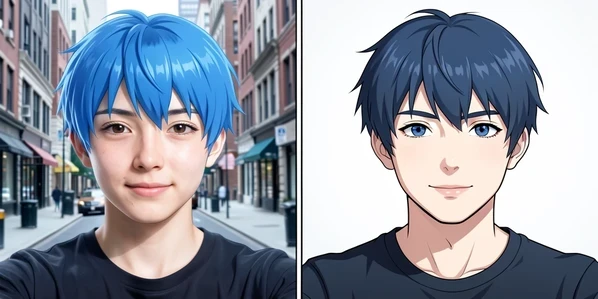
If you want to see yourself in anime, first decide which result you actually want. To place your real face onto a specific anime character, use a true face-swap tool like DomoAI or insMind. To turn your selfie into anime art that just looks like you, use a photo-to-anime converter like Fotor. These are not the same task, and using the wrong tool is the top reason people end up with output that looks nothing like them. Whatever you pick, feed it a clear, front-facing real photo of at least 512x512 pixels. Never use a cartoon image as the source face.
Face Swap vs. Style Transfer: Two Different Tasks
A true anime face swap transplants your face onto an existing anime character image. The character's hair, body, and scene stay; your face replaces theirs. Photo-to-anime style transfer does the opposite job: it redraws your whole photo in an anime art style, so the output is a stylized version of you, not your face dropped onto someone else.
Pick by goal. Want to roleplay as a named character or build a cosplay-style edit? That's face swap. Want an anime avatar or profile picture that reads as your likeness? That's style transfer. Confusing the two is where most frustration starts.
Most apps marketed as "anime face swap" on app stores are not real face swaps at all. They run style transfer, or worse, they paste a static sticker over your photo.
One more thing shapes every workflow below. AI face detection is trained almost entirely on real photographs, so it reads a real selfie cleanly but stumbles on illustrated or cartoon faces. That single fact explains why your source image must always be a photo, a point we return to in every method.
What You Need Before You Start
Prep decides the result more than the tool does. Get the input right and almost any of the methods below works on the first try.
- A clear, front-facing portrait with the full face visible, no sunglasses or hair across the eyes.
- Resolution of at least 512x512 pixels, the minimum DomoAI recommends for clear, visible faces.
- A JPG, PNG, or WebP file.
- A plain or simple background so the AI can isolate your face without artifacts.
- One face per photo. Crop to a single face first, because most tools detect only one.
- A real photograph as the source, never an illustrated or cartoon image.
Doing a true swap onto a character? You also need the anime target image, the body and scene your face will land on. Try to match its lighting angle to your selfie. A front-lit anime character pairs best with a front-lit photo, and that single match does more for realism than any setting inside the tool.
Method 1: True AI Face Swap onto an Anime Character (DomoAI)
DomoAI performs a genuine swap: it matches skin tone, adjusts lighting, and blends your face into the anime image rather than pasting it on top. This is not a deepfake, and it needs no multi-image training. One source photo is enough.
- Upload your real portrait as the source face, ideally 512x512 or larger with a simple background.
- Upload the anime character image as the target, the scene your face gets placed onto.
- Click Generate. DomoAI matches skin tone, adjusts the lighting, and blends the new face in seconds.
- Download the result as JPG, PNG, or WebP.
New users get free credits to try it; paid plans start at $9.99/month per DomoAI's pricing at publication time. Because the whole job runs on facial landmark mapping between two faces, the closer your photo's angle is to the character's, the more recognizable you stay in the final image.
Method 2: Face Swap onto Anime Character (insMind)
Want a second option in the browser? insMind runs the same kind of true face swap and is worth keeping as an alternative to DomoAI if one tool's queue or output disappoints you.
- Open insMind AI Face Swap and upload your portrait, a real photo and not a drawing.
- Add the anime character image you want as the target.
- Start the generation, then download the finished swapped result.
Method 3: Photo-to-Anime Style Transfer for an Anime Avatar (Fotor)
If your goal is an anime profile picture, you don't want a character swap at all. Fotor redraws your photo into anime art that keeps your likeness. The output is you, stylized. It is not your face transplanted onto a named character.
- Drag and drop your photo into Fotor, using a clear portrait with a simple background.
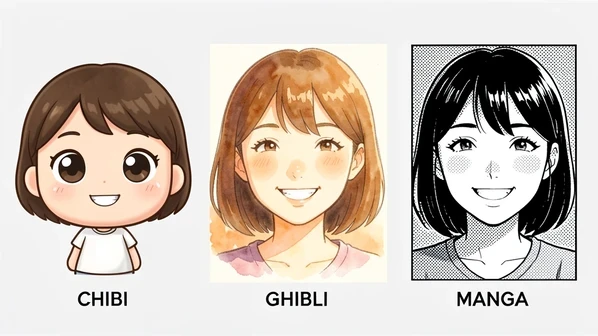
- Pick a style: Chibi, Studio Ghibli, Manga, or Cyberpunk. Ghibli leans painterly, Chibi gives a small cute character, Manga goes black-and-white ink.
- Click Generate and wait a few seconds while the AI redraws your photo.
- Review and download your anime picture.
Fotor carries a 4.5-star rating on Capterra, useful reassurance before you hand it a photo. Running the same selfie through Chibi, then Ghibli, then Manga is a quick way to see how far the styles diverge from one input.
Method 4: Manga Filter for a Black-and-White Manga Look (FlexClip or OpenArt)
Manga and anime are not interchangeable. Manga means black-and-white ink: line art, monochrome, halftone shading. Anime means color and cel-shading. For a true manga aesthetic, reach for a dedicated manga filter rather than a general anime converter.
FlexClip is the fastest path. Drag and drop your image, pick the Manga Art style, and optionally type a short description to steer the output. Generate, then download or share directly to social media. It processes in seconds.
OpenArt gives you more control. Drop your file, wait for it to load fully, select the manga style, then adjust the creativity level: higher values stylize harder, lower values stay closer to your photo. Set the number of generations and click Create. Generating 3 to 4 versions in one session lets you pick the best instead of re-uploading over and over.
Method 5: Mobile App, Anime Face Changer (Android)
Here is the honest version. Anime Face Changer by Aquarius Dev is a sticker-overlay app, not an AI morphing tool. It places a flat anime face graphic on top of your photo, and you align it by hand. The result looks like a sticker on a photo, because that is exactly what it is.
- Install Anime Face Changer from Google Play and open it.
- Pick a photo from your gallery or shoot a new one.
- Add a face sticker of the anime character you want.
- Rotate, scale, and drag the sticker to line it up over your face, all by hand.
- Save or share.
The app has 500K+ downloads but only a 3.7-star rating from 1,800 reviews on Google Play. A lot of that disappointment is the expectation gap: people install it thinking it morphs faces like DomoAI. It is free with in-app purchases. And per its Play Store disclosure, data cannot be deleted and is not encrypted, which makes it the riskiest privacy option here. Use it for casual fun, not for a result you want to look real.
Common Mistakes and How to Fix Them
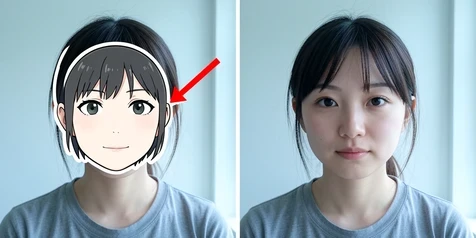
Bad anime face swaps almost always trace back to the input, not the AI. Here is what breaks results and the fix for each.
| Mistake | Why it breaks the result | Fix |
|---|---|---|
| Cartoon or illustrated source face | Detection is trained on real photos, so a stylized source produces inconsistent reads and broken blending | Always use a real photograph as the source; the anime image is the target only |
| Sticker app, AI-blend expectations | Apps like Anime Face Changer paste a static sticker that never blends with the photo | Use DomoAI or insMind for true morphing; keep sticker apps for casual use |
| Busy or complex background | The AI struggles to isolate the face cleanly, leaving blurry, artifact-heavy edges | Use a plain background, or remove the background before uploading |
| Mismatched lighting or angle | Facial landmark mapping misaligns, leaving unnatural blending and visible seams | Match face angle and lighting direction between your photo and the anime target |
| Group photo upload | Single-face detection fails or swaps the wrong face | Crop to one face before uploading |
| Resolution under 512x512 | Too little facial detail for analysis, giving blurry or pixelated output | Use the highest-resolution portrait you have |
One extra tip for washed-out or off skin tone in a swap: re-shoot the source in natural daylight. Indoor artificial light throws the tone matching off, and daylight gives the AI cleaner color to work from.
Privacy: What Happens to Your Uploaded Face Photo
You are uploading your face, so the policy matters. The tools here handle your photo very differently, and a couple are explicit enough to trust on this point.
- DomoAI states your images are processed for face swap generation only, not used to train AI models or shared with third parties.
- LlamaGen uses SSL encryption and says all personal information is deleted within 24 hours, the clearest deletion timeline of the group.
- OpenArt says your edits stay private and secure, with no external access to your image data.
- Anime Face Changer (Android) discloses that data cannot be deleted and is not encrypted, the highest privacy risk covered here.
If face-data handling worries you, favor a tool with an explicit deletion timeline. LlamaGen's 24-hour deletion is the strongest commitment on this list, and it also offers watermark-free downloads at no cost, handy when you need a clean export for a profile picture without paying for a premium tier.