
Get a stronger likeness by feeding several photos of the same person into one swap
To face swap with multiple reference photos of the same person, feed the whole set into a tool that fuses identity inputs rather than one that accepts a single source face. A stored identity in PiktID Swap reuses your best reference, FLUX PULID in ComfyUI composites several source images into one face, the IP-adapter face model in AUTOMATIC1111 transfers identity with natural variation, and Dreambooth trains a reusable model from the entire set. More clean photos give the AI more facial data, so the result looks less like one frozen angle and more like the actual person.
Before you start, gather what each method assumes you have.
- Several clear, unobstructed photos of the same person, plus one target photo to place the face onto.
- Permission to use those photos: ask the person, take selfies, or fall back to the celebrity-name method.
- For the local routes, AUTOMATIC1111 or ComfyUI installed and kept current; the PULID workflow wants 16GB or more of VRAM.
Why more than one reference photo improves a swap
A single reference locks the AI to one identity captured at one angle, so every output repeats that same face in that same pose with no natural variation. Stable Diffusion Art documents this directly: feed it one photo and you get a fixed look. Several photos of the same person hand the model more facial landmarks to read, and tools built to fuse those inputs capture features that one frame simply never showed.
Multi-reference is not always worth the setup. One sharp, well-lit, frontal photo is plenty when the target pose matches it closely. Reach for several photos when likeness stays weak, when the target angle differs from your best shot, or when you need the same person across many future images. Quantity is a fix for a specific failure, not a default.
Choosing and prepping your reference set
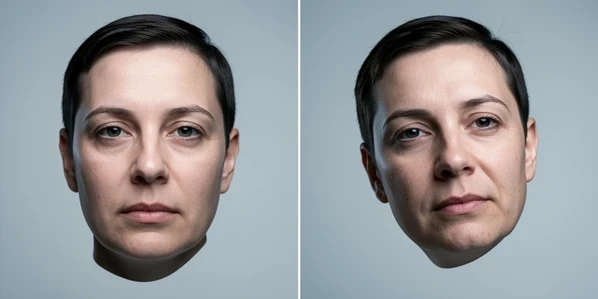
Start from your single sharpest photo, then add more only if likeness is still off. The AI cannot recover features it never saw, so blurry or obstructed faces drag the whole result down. Easemate notes that low-quality or occluded references stop the model from capturing all facial features, which is why a small set of clean shots beats a large pile of mediocre ones.
- Keep angles close and lighting consistent across the photos you keep.
- Drop anything where hair, hands, glasses, or shadow hide part of the face.
- Pick one clear, neutral expression rather than mixing a grin with a frown.
- Upscale each reference before swapping; it cuts the halos and edge artifacts that show up later.
How many is enough? Three to five strong photos usually carry a swap. Discard weak shots ruthlessly. A single off-angle frame with harsh side lighting can skew the blend more than the two good photos beside it help.
Method A: online identity store with PiktID Swap
This is the beginner path. You build a stored identity from your best reference and reapply it, so the same face stays consistent across many later images without re-uploading each time. PiktID processes swaps in seconds and offers free credits, which makes it a cheap place to test which reference reads best before committing to a heavier local workflow.
- Open PiktID Swap and upload your base or target image, the photo you want the new face on.
- Upload your single best source face, or save it as a stored identity to reuse across future images.
- Let the AI auto-align and blend, then download; you can upscale before swapping and tweak expression or background afterward.
If a web tool only takes one source face, do not pick the most flattering photo. Pick the one whose angle and lighting match the target, because the closer those two agree, the less the blend has to invent. You can read PiktID's own walkthrough at piktid.com.
Method B: FLUX PULID multi-image fusion in ComfyUI
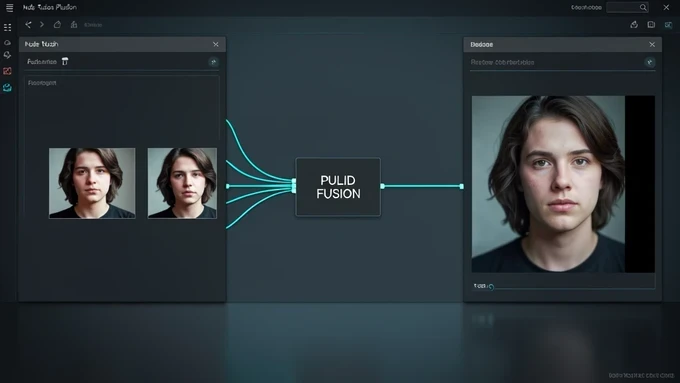
This is the only route here that genuinely composites several source photos of one person into a single identity. The ComfyUI FLUX PULID v0.9.1 workflow takes at least one character reference plus one target scene image, then fuses the references so the output carries features pulled from across the whole set rather than from a lone frame.
- Provide your references and a target: at least one character reference image plus one target scene image.
- Composite multiple source photos of the same person and remove their backgrounds so only the face data feeds the fusion.
- Run PULID face feature extraction and fusion, the step that actually preserves identity across the differing references.
- Generate with depth ControlNet and a 4x UltimateSD upscale, which lifts the resolution from 1024x768 to 2048x1536.
Mind the hardware. ComfyUI's guide recommends 16GB or more of VRAM because PULID and UltimateSD upscaling are both resource-heavy, and the 4x upscale step is where most of that memory goes. The full workflow write-up lives at comfyui.org.
Method C: ControlNet IP-adapter face for varied, natural likeness
When a single-reference ReActor swap keeps handing you the same rigid face, the IP-adapter face id method loosens it. It transfers identity from a reference while letting expression and angle move, so the likeness reads as a real person rather than a pasted cutout. Stable Diffusion Art credits this method with the more natural, varied results that one fixed source face cannot give.
- Update both AUTOMATIC1111 and the ControlNet extension to current versions.
- Install the ip-adapter-plus-face_sd15 model.
- Enable ControlNet with preprocessor ip-adapter_clip-auto and the ip-adapter-plus-face_sd15 model.
Why does this beat a fixed reference? The face model conditions on identity features instead of stamping one frozen frame, so the diffusion process is free to render that identity at new angles and expressions. That freedom is exactly what the single-photo workflow lacks.
Method D: train a reusable model with Dreambooth from many photos
For a specific non-famous person you will reuse often, training beats repeated one-off swaps. Dreambooth learns the face from your whole reference set and bakes it into a checkpoint, after which you can generate that identity in any pose or outfit on demand.
- Gather training images: generate them with ReActor, or use selfies and other permitted photos of the person.
- Train a new checkpoint on that set with Dreambooth.
- Generate with the trained model to reproduce the same identity across poses, outfits, and scenes.
Is the setup worth it? Train only when you need the face many times. One photo for one swap does not justify the hours; a recurring character, client, or model does. That break-even is the whole decision.
Reconciling differing angles and lighting across references
The core complication of multi-reference work is photos that disagree. Mismatched lighting and angles make the final swap look obviously fake, because the model tries to average inputs that never belonged together. The fix starts before any swap: keep angles similar, match lighting, hold a clear expression, and drop occluded shots. Then upscale before swapping to keep the reconciliation from introducing fresh artifacts.
When you blend named inputs in Stable Diffusion, balance them with keyword weights. The (keyword:weight) syntax lets you dial each input down, for example (name:0.5), so one strong name does not overpower the rest and skew the whole face toward itself.
Troubleshooting: when the swap mixes both faces or ignores your references
Two failure modes dominate this task, and each has a mechanical cause.
The swap blends both faces. A plain swap can change the face too much in the final steps, merging photo one and photo two instead of replacing only the face. Mask the face with inpainting, enable image-prompt Faceswap, raise the Forced Overwrite of Refiner Switch Step to about 50, and push the Faceswap weight to .85 or higher. In Fooocus that means putting the image to change in the inpainting area, masking only the face, placing the other photo in image prompt with Faceswap on, and enabling image prompts with inpainting in the debug tools.
You keep getting the same face at the same angle. That is the single-reference signature. Switch to the IP-adapter face id method, or fuse several references with FLUX PULID, so the model has more than one frame to draw from.
The output looks nothing like the person. Almost always the references are the problem. Replace blurry or obstructed shots with clear, unobstructed photos and the likeness usually returns. Stable Diffusion Art's guide at stable-diffusion-art.com covers the IP-adapter and keyword-weight details in depth.
Consent and responsible use
Using another person's face carries an obligation. Get permission before you use someone's photos: ask them directly, take your own selfies, or use the celebrity-name method where it applies. Providers enforce strict policies against non-consensual or harmful content, and those rules exist for good reason. Treat consent as a prerequisite, not an afterthought.