
Free AI Gender Swap: Turn Any Selfie Into the Opposite Gender
Gender swapping a photo with AI takes three moves: upload a clear front-facing image to a free browser tool, click generate, then download. EaseMate does this with no account, no watermark, and 4K output. AILab Tools is the no-sign-up backup, capped by a daily free limit. HeyPhoto adds a watermark but hands you a slider for partial changes. Under the hood the model rebuilds gender-specific markers, jawline, brow ridge, skin texture, and hairstyle, which is why a sharp, well-lit source decides whether your result reads realistic or melts into something cartoonish.
What AI gender swap actually does to your photo
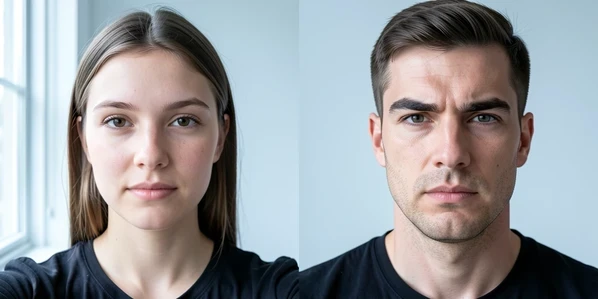
The AI reads facial landmarks: jawline width, brow prominence, skin tone and texture, and hair. Then it applies gender-typical adjustments to those regions. No second photo is involved. This is the key difference from a face swap, where one person's face is grafted onto another's. Here the tool transforms your own face rather than borrowing someone else's.
How far the change reaches depends entirely on the tool. EaseMate and AILab Tools concentrate on the face. Some tools push further into hairstyle, clothing cues, and body shape. That single distinction explains a complaint readers post constantly: the face looks convincingly swapped, but the original hair and shoulders give the illusion away. Knowing what a given tool touches, before you upload, saves you a disappointing download.
Pick the right free tool for your situation
Three decisions settle which tool you open: does the free download carry a watermark, do you have to register, and how long does processing take. The table below maps the main free options against exactly those questions, with file limits noted so you know what each will accept.
| Tool | Sign-up | Watermark on free output | Speed and key notes |
|---|---|---|---|
| EaseMate | Not required | None | 4K HD output, accepts files up to 10 MB |
| AILab Tools | Not required | Not added | Daily free limit; files deleted within 24 hours |
| HeyPhoto | Not needed to try | Yes (paid removes it) | Masculinity/femininity slider; faces up to 1024×1024 px |
| NanoImg.io | Credits-based | Yes, and free results are public | Under 10 seconds; up to 4 images at once; 2 credits per swap |
| YouCam Online Editor | Required | Varies by plan | 5 free credits on registration; also handles video |
| LogoAI | Not confirmed | Varies | Processing can take 2–3 minutes |
| Live3D | Varies | Varies | Max 2 MB; also supports anime and illustrated characters |
| Media.io | Varies | Varies | Max 5 MB; files auto-deleted after a few hours; optional retouch |
| Pica AI | Free credits for new users | Varies | 1–5 faces per photo; accepts MP4 video; HD in under 10 seconds |
A few numbers are worth pinning down before you commit. NanoImg.io advertises transformations in under 10 seconds, which makes it the fast batch option, though its free results are watermarked and made public. LogoAI sits at the other end: its gender swap could take 2 to 3 minutes. If you only want one quick try with nothing to remove afterward, EaseMate's no-watermark, no-sign-up path is the shortest route. Want a no-account tool that also does age changes in the same pass? AILab Tools covers that.
Pro move: run the same photo through EaseMate and AILab Tools and compare. Both are free and need no login, so you spend nothing while picking the more believable result.
Prepare your photo before you upload
Most bad swaps trace back to the input, not the algorithm. The AI leans on facial symmetry and a set of bilateral markers, so a clean, square-on source does most of the work for you. Here is what to check, and why each item matters mechanically rather than as an arbitrary rule.
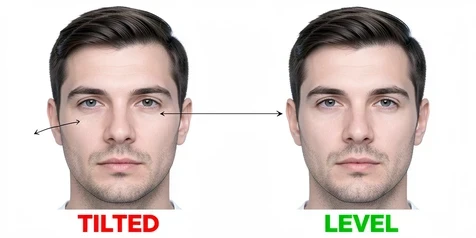
- Shoot or pick a front-facing photo with even lighting on both sides. A tilted head breaks the symmetry the swap depends on, so the change lands unevenly and one side ends up looking different from the other.
- Skip heavy makeup, bold filters, and dramatic facial hair, since these mask the natural landmarks the AI uses to read jawline and brow.
- Go high-resolution. The model needs real pixel detail to detect and reshape fine features like the jawline and brow ridge; starve it of detail and you get blur or a cartoon.
- Match the file to your tool's ceiling before uploading, or the upload simply bounces.
- Confirm the format. JPEG, PNG, and WebP are accepted across these tools.
File limits differ enough to catch you out. EaseMate accepts up to 10 MB. Media.io, NanoImg.io, and HeyPhoto cap at 5 MB, and HeyPhoto additionally wants the face no larger than 1024×1024 px. Live3D is the strictest at 2 MB. If a file is too big, run it through a free browser-based compressor rather than abandoning the tool you wanted. For the cleanest outcome, take a fresh shot specifically for the swap: face the camera, use daylight or a ring light, and drop every filter.
Step-by-step: gender swap with EaseMate (free, no sign-up, no watermark)
This is the lowest-friction path for most people. No account, 4K output, nothing to crop out afterward.
- Open easemate.ai/gender-swap in your browser. No account or sign-up step stands in the way.
- Upload your photo as JPG, JPEG, PNG, or WEBP, up to 10 MB. A front-facing, well-lit shot with minimal makeup pays off here.
- Click Generate. The AI now analyzes your facial features, jawline, brow ridge, and gender-specific characteristics, then applies the transformation.
- Preview the 4K HD result and download it. No watermark is added, and you pay nothing.
On privacy, EaseMate states plainly that your data and information are not shared with any third-parties or used for AI training. That makes it a reasonable default for a one-off curiosity test where you would rather not leave your face on a training server.
Step-by-step: gender swap with HeyPhoto (slider control for nuanced results)
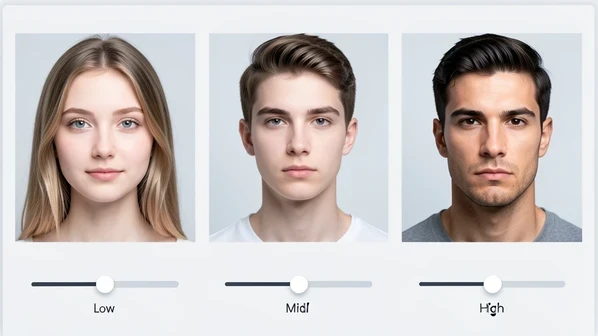
HeyPhoto is the one tool here with a fundamentally different control model. Instead of a single male-or-female button, it gives you a continuous slider, so you can stop anywhere between.
- Go to hey-photo.com/tools/gender and upload a JPG, PNG, or WEBP up to 5 MB, with the face no larger than 1024×1024 px.
- Drag the masculinity/femininity slider right or left. The preview updates in real time, so you watch the face shift as you move it.
- Download when it looks right. Free downloads carry a watermark; a paid plan strips it.
Why bother with a slider? Binary tools force a full swap, which can look jarring on faces that already read as androgynous. The slider lets you settle on a midpoint that stays natural. If you want a subtle shift rather than a hard flip, stop partway and keep what looks believable.
Step-by-step: gender swap with AILab Tools (no sign-up, daily free limit)
AILab Tools is the alternative no-account route, with one extra trick: it can combine gender swap with an age change in the same session, anywhere from 1 to 85 years.
- Open ailabtools.com/age-gender-swap. No account required.
- Upload a clear, front-facing portrait.
- Pick gender swap as the transformation type, and if you like, dial in an age change too.
- Download the processed image. Free users hit a daily usage limit, so plan your tries.
AILab Tools is explicit about handling: uploaded and generated files are automatically deleted within 24 hours, used only for result generation, ensuring data security. Combined with no sign-up, that makes it an easy companion to EaseMate when you want a second opinion on the same face.
Why your result might look wrong, and how to fix it
A bad first result almost always points back to one specific input problem. Match the symptom to its cause and you rarely need to switch tools at all.
- Cartoonish or unrecognizable output means the source was too low-resolution for the AI to detect fine features. Re-run with a sharper, higher-resolution image.
- A lopsided, uneven transformation comes from a tilted head; the swap could not align both sides. Use a level, front-facing photo.
- Blended or inaccurate features point to heavy makeup, bold filters, or facial hair masking the landmarks. Switch to a clean, natural look.
- An upload that gets rejected outright has exceeded the size cap, so processing never starts. Compress to fit your tool: EaseMate 10 MB, Media.io and NanoImg.io 5 MB, HeyPhoto 5 MB, Live3D 2 MB.
- Hair, clothing, and body left unchanged is not a bug; the tool only edits the face. Move to a tool that extends to hairstyle and body, or accept the face-only result.
Privacy: what happens to your photo after you upload it
Your face is sensitive data, and these tools differ sharply on what they keep. The retention and training policies below come from each tool's own statements, so you can pick before uploading rather than guessing afterward.
- EaseMate: data is not shared with third parties or used for AI training.
- AILab Tools: uploaded and generated files are deleted automatically within 24 hours and used only to produce your result.
- Media.io: uploaded files are deleted automatically after a few hours.
- Pica AI: guest files auto-delete in 24 hours, and logged-in users can delete their data at any time.
- Live3D: images are not stored permanently and the tool follows clear privacy policies.
- HeyPhoto: images are stored so you can re-access them quickly, but you can delete them yourself whenever you want.
Consent matters as much as deletion policy: only gender-swap your own photos, or photos where the subject has given you explicit permission. EaseMate itself notes you should edit your own photos or obtain explicit consent from others.
Quick answers to common questions
What is the best free gender swap AI with no sign-up?
EaseMate, for most people: no sign-up, no watermark, and 4K HD output. AILab Tools is the close runner-up if you want a different interface, though a daily free limit applies.
Can I gender swap a group photo?
Yes. NanoImg.io processes up to 4 images simultaneously, and Pica AI handles 1 to 5 faces inside a single photo.
Does the swap change only the face or the whole body?
It depends on the tool. Some modify only facial features, while others extend the change to hairstyle and body shape. Check which kind you are using before you upload, because that choice is the single biggest factor in how consistent the result looks.
How do I get a gender-swapped photo without a watermark for free?
Use EaseMate. Free downloads carry no watermark and require no sign-up, so the file is ready to post as-is.
Can I gender swap a video?
Pica AI accepts MP4 video alongside still photos, and YouCam Online Editor also supports video in addition to images.