
Face swap any photo on your Android phone with free apps
To swap faces on Android, install a free face swap app from the Google Play Store, upload a source face and a target photo, let the AI detect and align the faces, then save the result to your gallery. The whole thing takes under a minute once the app is set up. The catch is choosing an app that does not quietly store your photos or auto-charge you after a trial. This guide walks the AI Face Swap Photo Editor by Pixapro as the main method, because its Play Store data-safety listing reports no data collected and encryption in transit, then covers a second app, a quality checklist, group photos, and how to avoid the subscription traps real users have reported.
What you need before you start
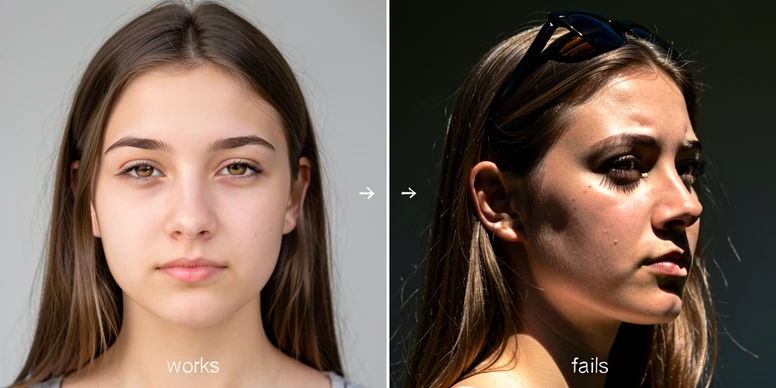
Good input decides everything. A face swap is only as convincing as the two photos you feed it, and most failures trace back to the source material, not the app. Pick photos where the face is clearly visible, well-lit, and unobstructed. Glasses, hat brims, heavy shadows, and extreme angles all confuse the facial landmark detection and lead to a misaligned or smeared result.
Lighting is the quiet dealbreaker. If your source face was shot under warm indoor light and the target scene is bright daylight, the swapped face reads as pasted-on no matter how good the AI is. Aim for similar lighting direction and a similar face angle across both photos.
- A stable internet connection, since every app covered here processes the swap in the cloud rather than on-device.
- Enough free storage to install the app and save outputs before you start.
- Camera, photos, and storage permissions granted when prompted, or the app simply cannot reach your gallery.
- Two photos with matched lighting and a roughly front-facing angle on both faces.
Choosing the right Android face swap app: a quick comparison
Three free apps dominate the Play Store search for face swap, and they are not equal on the thing that matters most: what happens to your photos. Reface is the household name with 100M+ downloads, but it sits at a 2.3-star rating across 1.79M reviews. A big install count is not a satisfaction score. Its data-safety listing also states it may collect location and financial info and may share photos and videos with third parties.
| App | Play Store rating | Free tier | Data safety (per Play Store listing) |
|---|---|---|---|
| AI Face Swap Photo Editor (Pixapro) | 3.8 stars, 24K reviews | 5 free uses | No data collected, no data shared, encrypted in transit |
| Reface | 2.3 stars, 1.79M reviews | Limited free, paid trial | Collects location and financial info, shares photos with third parties, can request deletion |
| Face Swap AI Photo Editor (Amobear) | 3.2 stars, 9.94K reviews | 5 free tries | Data can't be deleted, data isn't encrypted, shares app activity |
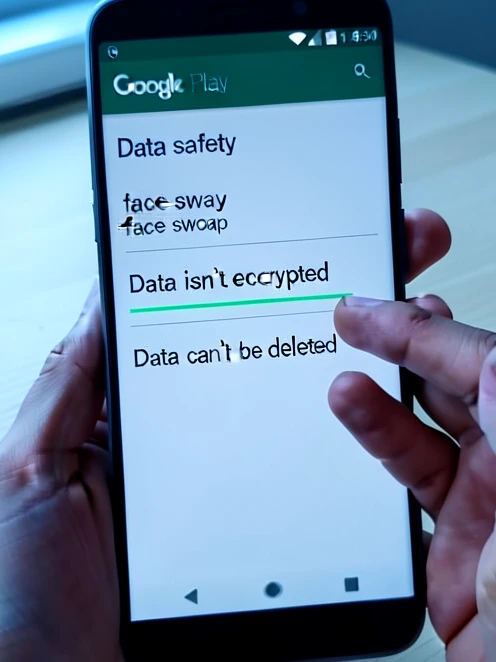
Amobear is the one to skip if privacy matters to you. Its own Play Store data-safety section states, in plain terms, that "Data can't be deleted" and "Data isn't encrypted." Uploading a photo of yourself or anyone else to an app that admits both of those is a needless risk.
Pixapro's listing tells the opposite story: no data collected, no data shared with third parties, and data encrypted in transit. Pair that with a 3.8-star rating across 24K reviews and it becomes the sensible default for a first swap. That is the app the walkthrough below uses.
Step by step with AI Face Swap Photo Editor (Pixapro)
Here is the full walkthrough. The app has 1M+ downloads, and the free tier gives you five swaps, so plan your photos before you burn a credit on a bad input.
- Open the Google Play Store, search "AI Face Swap Photo Editor", and install the Pixapro app. Glance at its data-safety section while you are there.
- Launch the app and grant photos and storage permissions when asked. Deny them and the app cannot load a single gallery image.
- Tap the face swap feature on the home screen.
- Upload your source photo, the face you want to use.
- Upload your target photo, the body or scene the face will be placed onto.
- Let the AI detect faces automatically. If detection stalls, the face is probably partly hidden or too dark.
- Confirm the correct face is highlighted, then tap Generate or Swap.
- Review the output for skin tone mismatch or seams along the jaw, and nudge any adjustment sliders the app offers.
- Save to your gallery, but check the free-tier result for a watermark before you close the app.
One scenario worth flagging: a user reported being charged ₱905 for a weekly subscription on this same Pixapro app after a free trial. The five free swaps are genuinely free, but a trial of any paid tier is not. More on cancelling that safely below.
Alternative method: PhotoDirector
Want more editing tools around the swap? PhotoDirector has a free version on Android with a dedicated AI Face Swap button, and it leans more feature-rich than Pixapro. The flow is shorter:
- Install PhotoDirector from the Google Play Store and open it.
- Tap AI Face Swap from the main menu.
- Pick a photo from your gallery, or start from one of the app's built-in template images.
- Tap the face you want to replace, then tap Swap Face.
- Check the result, then save to your gallery or share it straight to social.
Running the same two photos through Pixapro and PhotoDirector is worth doing once. The differences usually show up in skin tone blending and the sharpness of the edge around the swapped face, and which one wins depends on your specific photos rather than a fixed ranking.
How to get the best results: photo quality checklist
Most bad swaps are input problems with a known cause. Run through this before you generate anything.
- Frame the face to fill roughly 20 to 30 percent of the photo. Small faces lost in a wide shot frequently fail detection outright.
- Keep both photos in the same lighting world, both indoors or both outdoors. Mismatched lighting is the single most common reason a swap looks fake.
- No glasses, no hat brims, no heavy shadows cutting across the face.
- Stay near front-facing. Past about 45 degrees of profile, the alignment drifts and the swap misregisters.
- Reach for the highest-resolution photo on your device, because a blurry or pixelated input produces a distorted output.
- When skin tones differ a lot between the two faces, use the app's skin tone slider, or pre-match exposure in Google Photos before importing.
A small habit pays off here. Set the skin tone adjustment inside the app before saving rather than trying to repair the output in a separate editor afterward. In-app blending happens at the seam itself and reads more naturally.
Swapping one face in a group photo
Group photos break a lot of apps, because the default behavior is to swap every detected face at once. The fix is to use an app that lets you tap to target a single face. Both Pixapro and PhotoDirector support selective targeting.
Picture a family photo of five people where you only want to change one face. Zoom in before importing to confirm every face is clearly visible and none overlap. After the app detects the multiple faces, tap only the one you want replaced, and wait until that single face is highlighted before you confirm. Tap too early and you may trigger a swap on the wrong person, since some apps process faces left to right by default. If that happens, undo and re-select.
For tighter control, Higgsfield processes one face at a time per operation rather than batching them. That constraint is an asset when you need precision over which face in a crowd gets swapped, though its free tier caps you at 5 generations per day, resetting roughly 24 hours after your first swap.
Privacy and subscription safety: what to check before you tap 'Start Free Trial'
The two risks no one warns beginners about are not technical. They are your photos leaking and your card getting charged. Both are avoidable in under a minute.
Before installing any face swap app, open its Play Store listing and scroll to the Data safety section. Three things matter: is data encrypted, can it be deleted, and what gets shared with third parties. Amobear's listing states data cannot be deleted and is not encrypted, so keep your photos away from it. Reface discloses that it may collect location and financial info and may share photos and videos with third parties, so read its privacy policy before you upload anything personal.
Now the money. One Reface user reported being charged a total of $25 after expecting a $4.99 per month charge. On the Pixapro app, a user reported a ₱905 weekly charge following a free trial. The pattern is the same: a trial auto-renews into a subscription nobody read the terms for. So read the full terms before starting any trial, note the exact end date, and set a calendar reminder for 24 hours before it expires.
Cancel any Android subscription this way: Google Play Store > tap your profile icon > Payments and subscriptions > Subscriptions > select the app > Cancel subscription. Do it before the trial ends, not after the charge lands.
Common mistakes and how to fix them
A quick troubleshooting pass for the failures you are most likely to hit on Android. Each has one mechanical cause and one fix.
| Mistake | Why it breaks | Fix |
|---|---|---|
| Blurry or low-res photo | Poor quality blocks accurate facial landmark detection | Use the highest-resolution image in your gallery, and avoid screenshots of photos |
| Mismatched lighting between photos | Different light direction makes the face look pasted on | Pick photos from similar conditions, ideally the same session |
| App fails to detect a face | The face is hidden, angled, or too dark for the detector | Make the face fully visible, front-facing, and well-lit, and remove glasses |
| Skin tone looks jarring | Source and target exposures differ too much | Use the in-app skin tone tool, or pre-match exposure in Google Photos |
| Trial started without reading terms | Trials auto-renew into paid plans | Read the terms, note the end date, and cancel via Google Play Subscriptions before it expires |
One more habit before you spend a free credit. On a quota-limited app like Pixapro's five uses, test the interface once with a throwaway pair of photos so you learn where the buttons are without wasting a swap on a bad input.
the part that bugs me is every single one of these runs the swap in the cloud. so your face is leaving the phone no matter what. on-device option would actually fix the privacy problem instead of trusting a data-safety label
"no data collected" on the pixapro listing means nothing when the image still gets uploaded to process. the listing is self-reported, nobody audits it
wait so the photo goes to a server even on the private one? ngl i assumed it stayed on the phone
yeah it's cloud. needs internet, article says it twice
idk man, 3.8 stars across 24k vs reface 2.3 across 1.79M. small sample makes the rating look better than it probably is
tried pixapro last night, the 5 free swaps actually work no card needed. was surprised lol
the real gap for me is no batch on group photos. one face at a time is fine for precision but slow when you actually have a crowd
small correction, higgsfield is the one capped at 5 generations per day, pixapro is 5 total free uses then it asks you to pay. two different limits people keep mixing up
omg the skin tone slider saved me, my first try looked so pasted on
encrypted in transit is the bare minimum. it says nothing about what they do with the photo after it lands on their server. that's the actual question and the listing skips it
reading on lunch so havent tested, but a 905 peso charge after a trial is exactly why i never start trials on these
how do you even cancel before the trial hits, do you have to remember the exact day
google play, subscriptions, cancel. takes 20 seconds
the missing thing nobody mentions is none of them let you strip the watermark without paying even though they call the tier free. free until you want a usable output
watermark on the free tier is in step 9, author buried it at the end
tbh i'd pay if there was a flat one time price. it's the auto renew weekly thing that's predatory
does photodirector also watermark the free swaps or just pixapro?
photodirector free version watermarks most exports yeah, not specific to face swap. been like that for a while
the templates in photodirector are kinda fun though, swapped onto one of the built in ones for a laugh
the thing i actually want is a swap that runs offline so nothing uploads. that feature just does not exist in any of these three. that's the limitation that matters and the article never raises it
+1
had a swap come out with the eyes all smeared, turned out it was my hat brim like the article warned ngl
glasses killed mine too. landmark detection just gives up
45 degrees profile and it misregisters, can confirm. anything past a slight turn is a coin flip
reface having 100M+ installs and sitting at 2.3 stars tells you install count is pure inertia, not quality. that line in the article is the only honest part
meh reface was the first one i ever tried, didnt know it shared photos with third parties till now
reface discloses location AND financial info collection plus sharing photos with third parties. and people upload their faces to it by the million. wild
amobear is the one to actually avoid, says straight up data can't be deleted and isn't encrypted. who ships that
to be fair amobear at least admits it in the listing. the scary ones are the apps that just don't disclose
i skipped amobear after reading that, no thanks
on phone in the subway, will redo the group photo one tonight from desktop
the group photo bit, do you have to zoom in BEFORE importing or can you do it in the app
before importing. the app detects whatever resolution you give it, if the face is tiny it fails outright
fill 20 to 30 percent of the frame, that number is the one tip that actually changed my hit rate
had like 11 fails in a row before i read that part lol
so look, the privacy framing here is backwards. it ranks apps by what the data-safety label claims, but the only real protection is the photo never leaving the device. cloud + good label still means you trusted a stranger's server with your face
someone above said offline doesn't exist in any of these. that's the dealbreaker for me too, not the rating
will check from desktop later but does pixapro keep the 5 free uses per device or per account? matters if you reinstall
pretty sure it's per account but i'm not certain, might be tied to the google play id. don't quote me
reinstalling to dodge the free limit never works anymore, they fingerprint it
tried it in prod once, long story
the lighting point is underrated. mine looked fine until i put an indoor face on an outdoor body and it screamed photoshop
yeah the lighting mismatch is so real, the face just glows different
same session photos fix it. easiest rule
wait does the in app skin tone tool actually blend at the seam or just tint the whole face
article says it blends at the seam itself, which is why doing it in app beats fixing it after. whether that's true in practice i haven't tested closely
charged $25 when they expected 4.99, that reface story is the whole problem with trials in one line
the pixapro 905 peso one is weekly too, so it's not even a one off, it auto renews every week until you cancel. read that twice
set a reminder 24h before, author's advice, the only safe way honestly
skimmed the troubleshooting table ngl but the screenshots of photos tip is gold, mine were all screenshots and blurry
screenshots of photos lose so much detail, of course detection chokes
didn't get the part about higgsfield resetting 24 hours after your first swap, is that a rolling window or fixed daily
rolling, resets roughly 24h after your first generation of the day, not midnight. so your reset time drifts
none of this matters if you care about the photo at all. the missing on-device mode is the elephant. everything else is choosing which server to hand your face to
fair
realistically though for a meme who's spinning up an offline model. cloud is fine for a joke pic, just don't feed it anything sensitive
that's the line right there. fine for memes, not for your actual face
so for a serious photo what would you even use instead, if cloud is out and offline doesn't exist
there was that one desktop tool too, blanking on the name, that ran locally i think?
if you mean the local one i'm thinking of it needed a decent gpu, not exactly a phone app. so we're back to the same gap
so what's the actual answer here, is there any phone app that swaps without uploading or are we all just pretending the privacy label covers it