
Put your own face on a Midjourney portrait with the InsightFaceSwap bot
Midjourney cannot swap a face on its own. You drive the swap from Discord with a second tool, the InsightFaceSwap bot, also branded Picsi.AI. The flow is short once it is set up: save a reference face with /saveid, generate and upscale an image with Midjourney, then hover the result, open the three-dot More menu, and pick Apps > INSwapper. The output comes back in a few seconds. Manage your patience on likeness, though. Segmind puts real-world accuracy at only around 30%, so the finishing passes below matter as much as the swap itself.
Why Midjourney needs a separate bot to face swap
There is no face-swap button inside Midjourney. According to Segmind, the platform ships nothing native for it, so every working method routes through the third-party InsightFaceSwap bot running on Discord. That bot is the same product marketed as Picsi.AI, which trips up beginners who go looking for two different tools and only need one.
Keep expectations grounded. Reported likeness lands around 30% on a typical pass, and the swapped region comes back softer than the rest of the frame. One YouTube commenter summed up the frustration plainly: the face came out completely different from their reference, every single time. That is normal first-pass behavior, not a broken setup, and the later sections fix most of it.
What you need before you start
Five things, gathered before you touch a single command:
- A Discord account and active access to Midjourney.
- A standalone Discord server you own and control, not a shared community one.
- Both the Midjourney bot and the InsightFaceSwap bot invited into that same server.
- A front-view, high-resolution face photo with no glasses and no heavy bangs.
- A face registered with
/saveidbefore you attempt any swap.
The photo choice is the part people underrate. Glasses, makeup, and a fringe falling over the eyes all hide the bone structure the model reads from, and the result ghosts or smears. A clean, evenly lit headshot facing the camera gives the bot the most to work with.
Step 1: Set up your Discord server and invite both bots
- Create your own Discord server. A private space you control keeps both bots reachable and avoids the triple-credit penalty described later.
- Invite the Midjourney bot so you can run
/imaginein this server. - Invite the InsightFaceSwap bot using its official invite link from the Picsi.AI Discord, not a random third-party link.
- Add a private
#apitext channel, the layout the bot's own setup walkthrough assumes.
That invite link detail is not pedantry. A user on YouTube tried several reshared links and none of them added the bot. Only the documented official link worked. If the bot never shows up after an invite attempt, a stale link is the first thing to suspect.
Step 2: Register your face with /saveid
Drop your reference photo into the channel and run /saveid, attaching the image and giving it an idname. This name is how you call the face later, so keep it short and clean. The InsightFace README sets the idname length limit at 10 characters, and you can store up to 20 idnames per account.
Never put a space inside an idname. The bot parses arguments by splitting on spaces, so /setid A, B reads as garbage while /setid A,B works. Pick something like wadeMC or lena01 and you sidestep the most common naming error in one move.
Step 3: Generate, upscale, then apply INSwapper
Run /imagine and build your base portrait. Once the grid lands, upscale the single image you want before anything else. This order is not optional. Segmind notes that swapping on low-resolution input degrades the result, because INSwapper has less detail to map the face onto.
Now apply the swap. Hover the upscaled image, click the three dots labeled More, then choose Apps > INSwapper. Per whytryai, the swapped image returns within a few seconds. On a phone there is no hover or right-click, so long-press the image to bring up the same Apps menu.
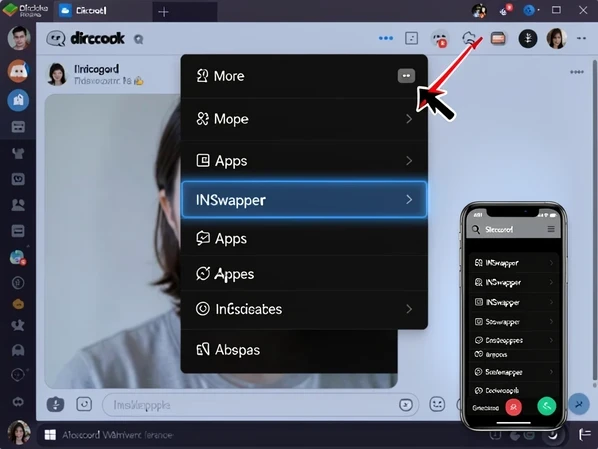
If INSwapper is not in that menu, you almost certainly skipped the upscale, since the Apps action attaches to an upscaled image, not a grid tile. The troubleshooting section covers the rest of the reasons.
Managing and switching face IDs
Once you have a few faces saved, a handful of slash commands keep them organized:
/listidshows every idname you have stored./setidpicks the default face that INSwapper uses, so you are not retyping the name every time./delidremoves a single saved face, and/delallwipes every one of them./swapidtakes a saved idname and applies it to a base image you upload yourself, rather than a Midjourney generation.
The /swapid path is worth knowing if your base picture lives on your drive instead of in Midjourney. Aiarty documents the flow: call /swapid with the saved ID name, attach your local image, and the bot returns the swapped version. Same engine, different entry point.
ID mixing is the trick people miss. Link up to three idnames with a plus sign, like lena01+mara02, and the bot blends them into a single composite face. The InsightFace README confirms the three-idname ceiling. Useful when you want a persona that belongs to no real person.
Power-user flags: HiFidelity, Sharpen, and Oldify
Two flags push quality before you ever reach for an external tool. HiFidelity (-f) tightens likeness to the reference, and Sharpen (-s) crisps the swapped region. Stack them when a default swap comes back mushy. They are the cheapest likeness gain available, and they cost you nothing extra per command.
Oldify ages the face. Set its strength with --oldify, which the README scales from 1 to 1000 and defaults to 300. Low values nudge, high values push toward elderly. One more ceiling to remember: maximum pixel output is 2048, raised from the old 1920 cap, so very large source files get resized down to that edge.
Free tier, credits, and GIF limits
The InsightFace README states each Discord account can run 50 swap commands per day. A single image never burns more than 2 commands, even when it contains four faces, so a busy session goes further than the raw number suggests. Whytryai reports the same 50-a-day free allowance, with sign-up required and results back in a few seconds.
GIFs follow their own rules. Basic members get up to 20 frames at 20 credits, Pro members get up to 75 frames at a flat 30 credits, and the maximum GIF file size moved from 7MB to 10MB. Video as a full workflow sits outside this guide, but the same bot handles short animated swaps within those frame caps.
Treat the 50-a-day figure as the published number, not a guarantee. Community reports dispute how fully free the tier really is, with some users hitting charges they did not expect, so verify your own credit balance before a long session rather than trusting the headline.
Fixing blurry swaps and improving likeness
The number one complaint is softness. Aiarty explains the mechanism: the swapped face comes back less sharp and at lower resolution than the surrounding image, because the model rebuilds that patch from a compressed embedding rather than copying pixels. So the swap will always look a touch softer than what Midjourney rendered around it.
Three fixes, in order of impact. First, feed it a clean front-facing source without glasses or bangs, the single biggest lever on likeness. Second, pick a target portrait whose facial structure already resembles your reference, since the bot nudges rather than rebuilds bone structure. Third, run the finished image through a dedicated AI enhancer. Aiarty notes such tools can push swapped images to 4K, 8K, or 16K while rebuilding realistic skin texture and detail.
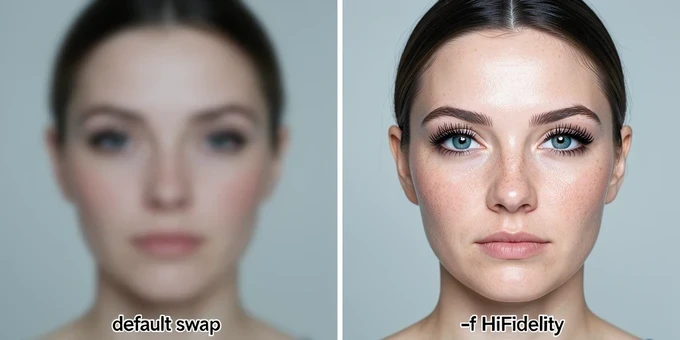
And do not stop at one swap. Community testers report likeness climbs when you re-run the same face a few times and keep the best result. It is cheap to try, given how little a command costs against the daily allowance.
Troubleshooting the bot errors people actually hit
Most failures map to a short list of causes. Here is what each message means and the move that clears it:
| Symptom | Cause | Fix |
|---|---|---|
| INSwapper absent from the Apps menu | You right-clicked a grid tile, not an upscaled image, or you are on mobile | Upscale the image first, then hover; on a phone, long-press instead of right-click |
| 'this option is required, please specify value' | You ran the command without attaching the image it expects | Re-run the command and attach the base image in the same message |
| 'more than 1000 commands in the queue' | The shared queue is overloaded at that moment | Wait and retry; the swap is queued, not lost |
| Charged triple credits | You swapped inside a server you do not own | Run swaps in your own server, where standard credit rules apply |
| Nothing happens, no error | You hit the daily 50-credit cap | Wait for the daily reset or check your balance before a long run |
The triple-credit one stings because it is silent until the bill. Working inside your own private server, the same one you built in Step 1, keeps you on normal rates and is the cleanest reason to never run swaps in someone else's community.