
FaceFusion 3.6 reviewed: how the open-source face swap tool holds up
What is FaceFusion? Quick verdict
FaceFusion is an open-source face manipulation platform that swaps faces in images, video, and GIFs entirely on your own machine, with a smaller cloud option for users who skip installation. Version 3.6.0 shipped on March 16 2026 and sits at 18 total releases on GitHub, with 27.4k stars and 4.4k forks behind it. The verdict, up front: it is the best free face swap tool you can run today, but only if you have a capable GPU and the patience for a real setup.
If you came here from a Google snippet calling FaceFusion the best cloud editor, that is a partial picture. The cloud version exists, but the tool's strength is the self-hosted build: every model, every processor, no usage cap, and no upload leaving your disk.
Who is FaceFusion for, and who should look elsewhere
The right user has either a Python background or strong tolerance for command-line setup. FaceFusion's own GitHub repository states that installation is not recommended for beginners, and that warning is honest. Once it runs, the tool rewards technical users with model variety and batch processing that no consumer app offers.
- Python or ML practitioners who want a scriptable face swap pipeline with CLI access.
- Privacy-conscious users handling personal photos or unreleased footage who refuse cloud uploads.
- Content creators with a gaming-grade GPU producing short clips and meme content.
- Film and game prototyping teams who need GHOST or simswap for stylistic tests.
- Hobbyist AI enthusiasts willing to read the GitHub README before complaining about install errors.
If none of that describes you, stop here. A non-technical user with a regular laptop will hit Python and CUDA walls within twenty minutes. The cloud build at facefusion.co is the only realistic local-free path for that audience, and even there a paid cloud tool may be the better investment of time.
Pricing and installation paths: four ways to run FaceFusion
FaceFusion is free, but the way you install it changes who can actually use it. There are four real paths, and they trade skill against privacy against speed.
| Path | Cost | Skill needed | Privacy | Best for |
|---|---|---|---|---|
| Self-hosted (GitHub) | Free | High (Python, Conda, CUDA) | Maximum, fully local | Developers and ML practitioners |
| Pinokio installer | Free | Medium, one-click auto-download of the repo | Local | Hobbyists who want a free shortcut |
| One-click Windows or macOS installer | $20 | Low | Local | Solo creators who want the easiest local setup and to support the project |
| Cloud at facefusion.co | Free | None | Uploads pass through their servers | Casual users testing the tool before installing |
The $20 one-click installer for Windows and macOS, mentioned in the Civitai guide, is positioned as a way to support the project and avoid the Conda dance. It is the easiest local path. Pinokio is the free middle ground: it pulls the GitHub repository for you, then runs it inside its own environment, but you still need a compatible GPU.
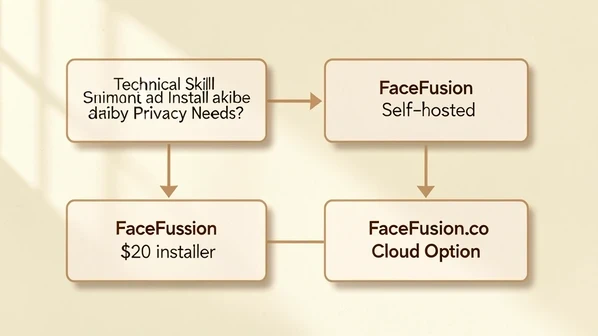
Pick the cloud version only for a sanity check. The moment you upload sensitive footage, you are inside someone else's pipeline with no published retention policy, a gap covered further below.
Hardware requirements: what you actually need to run FaceFusion
There is no official minimum VRAM specification anywhere in the FaceFusion docs. That is the single most common reason new users waste an evening on a failed install. Treat the absence as a real gap and plan from community-sourced floors: a 6 GB consumer GPU is the practical minimum for short image work, and 12 GB or more is where video face swaps become tolerable.
GPU acceleration via CUDA is the recommended runtime on Windows and Linux, per MimicPC's FaceFusion 3 guide. Mac users are pointed at TensorRT. CPU-only mode runs, but the wait climbs into the absurd range even for a single image swap, so do not plan around it.
- Keep video clips under 30 seconds to manage render time, as recommended in the SeaArt walkthrough.
- Expect raw face swap output at a relatively low resolution; enhancer models do the heavy lifting on quality.
- A modern RTX-class GPU shortens a 10-second clip from minutes to tens of seconds, though no official benchmark exists.
For a deeper hardware breakdown across GPU tiers and VRAM bands, that question belongs to a dedicated guide rather than this review.
Core features: what FaceFusion 3.0 actually does
FaceFusion 3.0 restructured every task as an individual job, which is the architectural change that makes batch and headless workflows feel built in rather than bolted on. Around that core, the 3.x branch packs more processors than any other free tool in the category.
- Five face swap models: inswapper, blendswap, simswap, uniface, and GHOST, each producing meaningfully different output.
- Face enhancer models: CodeFormer, GFPGAN, GPEN_BFR, and RestoreFormer, needed because raw swap resolution is low.
- Pixel Boost for refining facial detail after the swap is in place.
- Lip Sync Processor powered by the open-source Wav2Lip_GAN model.
- Live Portrait for expression and emotion control on the target face.
- Age Modifier Processor for aging a face younger or older from one source.
- Frame Colorizer that adds color to black-and-white footage frame by frame.
- Multi-face swapping for up to six faces simultaneously in a single image or video frame.
- GIF support alongside images and video, useful for meme and social workflows.
- Headless-run and batch-run CLI modes, which is what makes the tool viable inside a Python project.
A small but practical detail: FaceFusion lists over ten enhancement models, including clear_reality_x4, per the AIHaven catalog. That breadth matters because no single enhancer wins on every face type, and the freedom to swap between them is what gets you past obvious deepfake artifacts.
Face swap model comparison: inswapper vs simswap vs GHOST vs blendswap
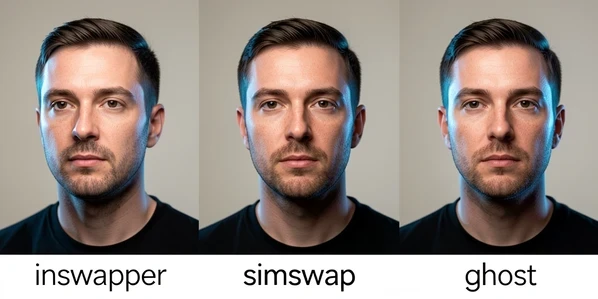
Model choice is the single biggest lever on output. The Civitai guide notes that each of the five face swap models produces different results, and in practice that is an understatement. They behave more like distinct render engines than presets.
| Model | What it does well | When to pick it |
|---|---|---|
| inswapper | Most photorealistic identity transfer in mid-light photo conditions | Start here for realistic portrait swaps |
| simswap | Softer, smoother blends with fewer hard edges | Group shots and softly lit scenes |
| GHOST | Stylized output with stronger identity push | Cinematic or artistic work where realism is secondary |
| blendswap | Better edge blending between source and target | Side angles and faces that fight inswapper |
| uniface | Generalist behavior across faces and lighting | When you do not know which to try |
Pair model choice with the video upscaler stage. The Civitai guide highlights Span_Kendata, LSDIR, UltraSharp4x, and Real_ESRGAN4x as the strongest for final video quality. The pattern that works: pick the swap model for identity fidelity, then push detail with Pixel Boost and an upscaler tuned for your footage.
Output quality: what to expect and how to improve it
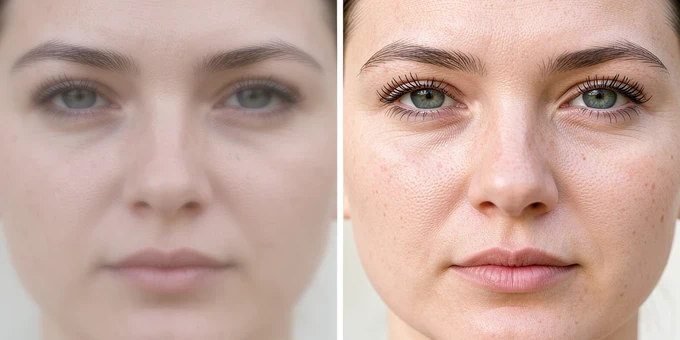
Raw swap output operates at a low resolution. That is the inconvenient truth that no marketing page mentions. Run an unenhanced inswapper job and the face will look right at thumbnail size and visibly soft at full resolution. The fix is mechanical: layer a face enhancer over the swap, then push the output quality slider where it belongs.
- Set output quality to 100 for highest definition, as MimicPC's FaceFusion 3 guide recommends.
- Lower the Face Detector Score to 0.2 to 0.4 for better recognition of side angles, per SeaArt's documentation.
- Use a Reference Face Distance of 0.8 to 1.0 for complex multi-face scenes.
- Apply CodeFormer or GFPGAN over the raw swap; both compensate for the low base resolution.
- Use Pixel Boost as the final polish step rather than as a substitute for an enhancer.
Edge artifacts around the swapped face are the most common quality complaint. They come from the swap's mask boundary fighting the underlying skin tone or hair. Switching enhancers usually solves it before any prompt-level tweak does. Some community sources cite up to 90% similarity with real faces, which is not a manufacturer benchmark and is not independently verified, so treat it as anecdote rather than spec.
Privacy and data handling: cloud versus local
Self-hosted FaceFusion is the cleanest privacy story in the open-source face swap world. The model files, the source image, the target footage, the output: everything stays on your disk. Nothing is shipped to a remote endpoint at any point in the pipeline.
The cloud version is a different conversation. AIHaven's overview confirms that uploads at facefusion.co pass through the cloud provider's servers, and there is no published data retention or deletion policy from FaceFusion or its cloud partner. That absence is the relevant fact. If you are processing anyone's face other than your own, route the work through self-hosted.
One more honest disclosure: FaceFusion does not gate content type. The technology does not discriminate between consensual edits and abuse, which the AIHaven catalog states directly. The responsibility sits entirely with the operator, not the tool.
Legal and ethical use: what you must know before publishing
Face swap is legal in most jurisdictions and harmful in many uses. The Civitai guide spells out the two recurring risk vectors: privacy and image rights for the person whose face you use, and intellectual property for the source material you swap into. Both can attract real legal exposure when consent is missing.
- Use your own footage, your own face, or properly licensed images as the default starting material.
- Get written consent when you use another person's face, even for a clip you call a joke.
- Disclose any face-edited content visibly when posting; transparency reduces both legal and platform risk.
- Do not impersonate a real person in any context that could be mistaken for genuine speech or action.
- Respect platform rules on synthetic media; many social networks now require an edited-media label.
Swapping your own face into a movie scene for personal amusement is one universe. Putting a colleague's face onto a body without asking is another. The Civitai guide is blunt about the downstream cost of getting that line wrong: damaged reputations, spread misinformation, and erosion of trust in digital media.
Common problems and how to fix them
These are the issues that actually stop people, ordered roughly by how often they appear in community threads.
Install crashes with no clear error
FaceFusion has no published root-cause guidance for install crashes, which is a real documentation gap. Start with the obvious: confirm the GPU driver version meets the CUDA build's requirement, recreate the Conda environment from scratch, and verify the Python version matches the README. If that fails, try Pinokio as a fallback before reinstalling the OS-level toolchain.
Lip sync silently fails
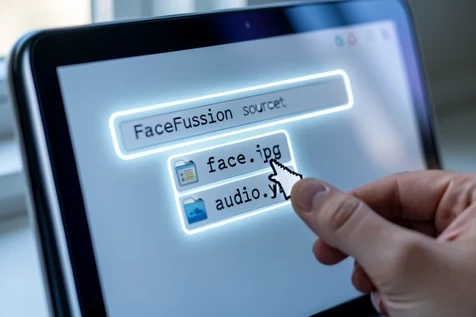
This is the bug that traps every new user. The Civitai guide describes the exact cause: you must drag the image and the audio file into the source field at the same time. Dragging them separately is the failure mode, and the UI gives no warning. Select both files in your file manager, then drop them together onto the source slot.
Side-angle faces are not detected
The default Face Detector Score is tuned for frontal portraits. Lower it to 0.2 to 0.4 as SeaArt's guide recommends, and three-quarter and profile faces start being recognized. The tradeoff is more false positives on busy frames, which Reference Face Distance handles.
Long videos take forever
Render time scales linearly with frame count. The pragmatic move is to cut your video into clips under 30 seconds, process each, then stitch externally. There is no progress estimate built in, which is irritating but not a bug.
Output looks low resolution
Default settings are the cause. Enable a face enhancer model, set output quality to 100, and turn on Pixel Boost. Quality jumps without touching any other parameter.
Cloud usage limits interrupt your workflow
Move to self-hosted. Pinokio is the fastest free upgrade path if Conda intimidates you. Once local, no usage cap exists.
FaceFusion versus paid alternatives: when free is enough
FaceFusion wins on cost, feature depth, model variety, privacy, and watermark-free output. It loses on setup complexity, mobile access, processing time on consumer hardware, and the absence of official support. The decision is rarely about quality at the top end; both camps can produce usable results.
If you have a GPU and patience, FaceFusion is unmatched at the price. If you need a finished clip in ten minutes from your phone, a paid cloud tool is worth the cost. DeepSwap, Reface, and Remaker AI sit in that paid bucket, each with its own tradeoffs that deserve their own reviews rather than a paragraph here.
Final verdict: is FaceFusion worth it?
FaceFusion 3.6.0 is the best free face swap tool currently available for users who clear the technical bar. Aixploria's AI tools aggregator lists it at 4.7 out of 5, which is roughly where it lands in practice, though that score is community-aggregated rather than benchmarked. With 18 releases and active 2026 maintenance, this is not an abandoned project that happens to still install.
| Use case | Recommended path |
|---|---|
| Developer building a face swap pipeline | Self-hosted GitHub install |
| Solo creator with a recent GPU and limited setup time | $20 one-click installer |
| Hobbyist wanting free but easier than GitHub | Pinokio |
| Casual test before committing to install | Cloud at facefusion.co for non-sensitive material |
| Non-technical user needing finished video in minutes | A paid cloud face swap tool instead |
Best for: ML practitioners, privacy-conscious users, and content creators with capable GPUs. Not for: anyone who needs a polished result in under ten minutes without ever touching a terminal. The verdict has not flipped since 3.0, and 3.6 sharpens it: the tool is still the right answer to the right question, and the wrong one if your question is speed and simplicity.
ok this finally got me to try facefusion last night and the inswapper results are kinda insane lol
on paper maybe. did you actually enhance it or is that the raw swap? raw inswapper is soft as hell at full res
raw i think, didnt touch the enhancer. and apparently it swaps like 4 faces at once which is kinda wild
right thats the whole catch. looks right at thumbnail size and falls apart the second you go fullscreen. throw codeformer over it and look again
matches what i found. ran an unenhanced inswapper job on a 6gb card, looked fine until i opened it at 1080 and every edge around the jaw was mush. gfpgan cleaned most of it, not all
wait you can run it on 6gb?? the readme scared me off, thought you needed way more than that
for single images 6 is the floor, barely. video is a different animal, anything under 12 and youre just staring at a progress bar that doesnt exist
the part that actually sold me is that nothing leaves the disk on the self hosted build. cloud version has no retention policy published anywhere, thats a hard no for me
the cloud thing is basically a demo, nobody serious uploads real footage to a pipeline with no deletion policy
whats conda lol
its the dependency manager. honestly if conda scares you just use pinokio, it pulls the repo for you and runs it in its own env. you still need a real gpu though
pinokio is fine until it isnt. had it silently grab the wrong cuda build once and i lost an evening to it. might be fixed now, checked it a while back
the install crash with no error is the classic one. theres no root cause doc at all, you just recreate the conda env from scratch and pray
+1 spent like 43 min on some python error before i rage quit the first time
the lip sync gotcha got me too. you have to drop the image and the audio into the source field at the same time, drag them in separately and it just silently does nothing
ohhh so thats why mine never worked
the 90% similarity number people keep quoting is marketing nonsense though. nobody benchmarked it, article even flags it as unverified and folks still repeat it like its spec
yeah its an anecdote. the 4.7 rating is community aggregated too, id take both with salt
what id actually want to know is whether the cloud partner logs anything at the network level, not just facefusion itself. no idea, not my area
doubt anyone here can answer that one honestly
is there a mobile version or not
the consent section should honestly be way louder. people treat its a joke clip as a free pass and it really isnt
tried ghost for a stylized clip last week and it pushed the identity way harder than inswapper, almost too much. simswap was softer on the group shot, fewer hard edges. uniface if you genuinely dont know which to grab
thats the real takeaway, model choice moves more than any slider. people obsess over output quality 100 and miss that swapping inswapper for blendswap fixes the side angle problem on its own
wait so which one do i even start with for a normal front facing portrait...