
Face swap a wedding photo: free AI methods, veil and lighting fixes, consent checklist
One blinked guest. One bad angle of the groom. The shot cannot be retaken. A free browser-based AI face swap fixes this in a few seconds: upload the wedding photo as the target, upload a clean frontal face as the source, click generate, review the hairline, download. Live3D is the recommended starting point because it requires no sign-up, processes in 3 to 5 seconds, and preserves the original resolution per its own documentation. The harder part is not the tool. It is the veil, the floral crown, and the lighting gap between an outdoor ceremony and an indoor reception shot.
This guide walks through three free tools, then spends most of its pages on the wedding-specific failure modes almost no competitor page addresses, and finishes with a consent checklist before you send the edited file to your photographer.
What you need before you start
Before anything else, check your inputs. AI face swap tools read facial landmarks (eyes, nose, mouth corners, jawline) from both images and warp the source face to match the target. If either photo hides those landmarks, the swap will misalign. Wedding photos hide them constantly.
- A target wedding photo and a source face photo, both in JPG, PNG, or WEBP format. Live3D caps file size at 20 MB per image.
- A clear, frontal face in the source photo with no obstructions. Sunglasses, a cathedral veil, or hair falling across the cheek all reduce detection accuracy.
- Similar face size and orientation across both photos. A tiny face in a wide group shot paired with a tight close-up donor rarely blends well.
- Similar lighting conditions. An outdoor golden-hour ceremony photo paired with an indoor flash-lit selfie produces a face that looks flat or washed out against the scene.
- A natural, unfiltered source image. Heavy beauty filters alter the feature data the AI reads, so a plain candid often outperforms an edited selfie.
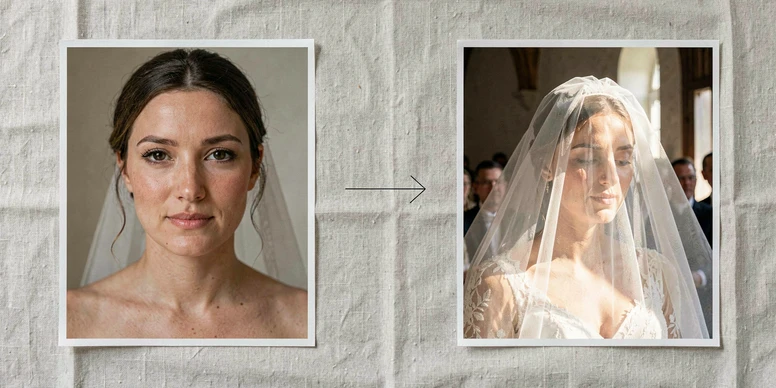
A quick example of how this plays out. The bride is wearing a cathedral veil that covers half her face in the portrait you want to fix. Do not use that same veiled image as the source. Pick a getting-ready shot or a candid taken before the veil went on. The AI needs to see the full face it is about to copy.
Face swap a wedding photo using Live3D (recommended for beginners)
Live3D is the default recommendation for wedding photos for three reasons: no account needed, results in 3 to 5 seconds, and output preserves the original resolution of whatever you upload. For album-bound images, that last point matters more than any interface niceness.
- Open live3d.io/ai-face-swap and upload the wedding photo as the target. JPG, PNG, or WEBP, up to 20 MB. This is the image containing the face you want to replace.
- Upload the replacement face as the source. Use a clean frontal shot with no veil, sunglasses, or hair across the face. Match the head angle to the target as closely as you can.
- Click Generate. The swap completes in 3 to 5 seconds per Live3D's own spec.
- Review the result before saving. Zoom in to 100% and inspect the hairline, skin tone, and any veil or accessory edges for visible seams.
- Download. Resolution stays the same as your upload, so start with the highest-resolution version of the wedding photo you have if you plan to print.
Pro tip for group shots. If only one guest in a wide table photo needs fixing, crop the target photo tightly around that person before uploading. The AI locks onto the intended face instead of the wrong one, and you composite the result back into the full group shot afterwards in any basic photo viewer that supports layers or paste-over.
Live3D also runs unlimited free photo face swaps on its free tier with no daily cap, which matters when you are fixing three or four photos in one sitting. The video side is separate and limited: up to 3 free video swaps per day at a maximum of 10 seconds each.
Face swap a wedding photo using Pixlr AI Face Swap
Pixlr suits readers who like a more polished browser UI and a template library. The output downloads as a PNG, which keeps sharp edges around veil lace and jewelry cleaner than JPG compression would.
- Go to pixlr.com/face-swap/ and open the AI Face Swap tool. Nothing to install.
- Upload the source photo containing the face you want to use. A natural, unfiltered frontal shot works best.
- Upload the target wedding photo, or pick a template from the Pixlr library if you want a themed composite.
- Click Run Face Swap. Results land in a few seconds.
- Click the swapped image to download it as a PNG.
Pixlr states: "With our tool, your creative output is entirely yours to own, ensuring your content remains private and secure." Worth reading before you upload a photo of people who have not consented to a third-party server seeing their face.
Face swap a wedding photo using Remaker (no sign-up, no watermark)
Remaker is the friction-free path. No account, no watermark on free output, nothing to cancel later. If you just need to fix one photo and move on, this is the fastest option.
- Visit remaker.ai/face-swap-free/. No account creation needed.
- Upload the original wedding photo as the target.
- Upload the replacement face as the source. Clear, frontal, unfiltered.
- Click Swap and wait a few seconds for the result.
- Download and share. Free output carries no watermark per Remaker's free-tier page.
Wedding-specific troubleshooting: veils, floral crowns, and lighting mismatches
This is where wedding photos break AI face swap tools. Every failure below comes from the same root cause: the model uses a small set of facial landmarks to align and warp the source face onto the target. Anything that covers those landmarks, distorts their apparent position, or changes how light falls across them produces a flawed result.
Veil or floral crown covering the face
A cathedral veil draped across the cheek hides roughly half the landmarks the AI relies on for alignment. Detection drops. The result comes back misaligned or partial. Fix: use a separate, unobstructed photo of the same person as the source face, typically a getting-ready shot or a candid from before the veil went on. If your chosen tool supports manual face-region selection, use it to force the detector onto the visible half.
Indoor donor face, outdoor ceremony target
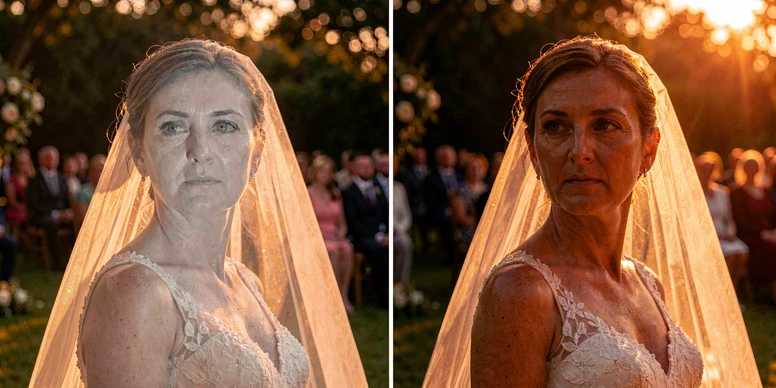
Flash-lit portraits cast a hard, cool, shadowless light across the face. Golden-hour ceremony light is warm, directional, with visible shadows under the brow. When the blending step composites the flash-lit face into the outdoor scene, it cannot recover the missing directional shadows, so the inserted face looks flat or overexposed against the scene around it. Fix: pick a donor photo taken in similar lighting, ideally the same event. If nothing matches, use a tool with automatic color correction and accept that a second manual pass may be needed.
Visible seam at the hairline or veil edge
The blending step stitches the warped source face into the target along an edge the model predicts around the hairline. When a veil, stray curl, or floral piece crosses that boundary, the edge prediction wavers and a visible seam appears. Fix: zoom to 100% before saving. If you see a seam, retry with a donor photo that has a cleaner, tighter hairline, or switch to a tool that supports a manual touch-up pass.
Face not detected at all
Common in ceremony shots where the bride is looking down at a ring, or a guest is turned mid-laugh. The detector needs enough visible frontal geometry to lock on. Fix: choose a donor photo whose head angle matches the target. If the guest in the target is turned 20 degrees, find a donor turned roughly the same amount. This single alignment decision has the biggest single impact on final realism, more than any tool choice.
Skin tone mismatch after the swap
Tan outdoor skin on an indoor-lit body reads as fake even when the geometry is perfect. Fix: review skin tone consistency in the result, compare the swapped face against the neck and hands in the target photo, and if they disagree, try a donor photo taken under conditions closer to the target.
Consent and privacy checklist before you share the edited photo
Weddings involve a lot of people who did not sign up to have their face edited on a stranger's server. Before sharing anything, walk through this list.
- Get consent from the person whose face you are swapping, whether it is your partner, a guest, or yourself. AIPhotocraft's own guidance puts it plainly: swap with consent, especially if the result will be shared publicly.
- Do not post face-swapped photos of guests online without their permission. A blinked-eye fix for a friend is fine privately; the same image on Instagram is not.
- Check the tool's retention policy. Some state they do not store uploads; others retain them. Pixlr states creative output remains private and secure on its platform. If the tool's page does not say, assume it retains.
- For photographer or vendor delivery, confirm the output resolution matches your original. Live3D preserves source resolution; if the tool you chose downscales, the file may be fine on screen but too soft for an 8x10 print.
- Commercial use is a separate policy. Higgsfield, for example, includes commercial use only on paid Pro plans. If a photographer plans to use the edited photo in a portfolio or marketing, that rule applies to them too.
A practical scenario. A wedding photographer wants to swap a guest's face before delivering the album because the guest's eyes were closed in the only usable shot of the first dance. The photographer needs: explicit consent from the guest, a tool whose commercial-use terms allow a paid client deliverable, and a resolution that matches the rest of the album. Free tiers often do not cover the commercial-use piece, so read the terms before the swap, not after the album is printed.
Free tier limits at a glance
Every tool's free tier has different edges on watermarks, sign-up, and daily caps. If you are fixing several photos across one evening, pick a tool without a daily ceiling. Limits verified at publication time from each tool's own pages.
| Tool | Sign-up required | Daily limit | Watermark on free output | Notes |
|---|---|---|---|---|
| Live3D | No | Unlimited photo swaps; 3 video swaps per day | Not stated | Output preserves original resolution; 3 to 5 second processing |
| Pixlr | No | Free to use | Not stated | PNG download; privacy policy states output remains yours |
| Remaker | No | Free to use | None on free output | Friction-free for one-off fixes |
| Higgsfield | Yes | 5 face swaps per day (resets ~24h after first) | Not stated on free tier | Commercial use only on paid Pro plans; 30s to 2m processing |
| YouCam (Perfect Corp) | Yes | 5 free credits on sign-up | Not stated | Credit-based, account required |
| AIPhotocraft | Verify at source | Not stated | None on free output | Published consent guidance on its face swap page |
For a reader fixing three different guests in three different photos in one sitting, Live3D's unlimited photo tier is the clear pick over Higgsfield's 5-per-day cap. For a single quick fix with no account, Remaker wins on friction. For album-bound work where print resolution matters, stick with Live3D because its preserved-resolution behavior is the only one explicitly documented among the free options.
One last thing before you send the file to the photographer. Open the final image at full zoom. Check the hairline, the veil edge, the skin tone where the jaw meets the neck. Most wedding face swap failures show up in those three places, and catching them before the album goes to print saves a reprint.
ok this is exactly what i needed. my brother got married in october and theres one photo where the best man blinked, the shot can't be retaken obviously. didn't know a browser could just fix that ngl
live3d no signup, results in like 4 seconds lol im sold, trying tonight
wait the source is the good face and the target is the photo im fixing? idk i keep flipping those two
@KillCreek target is the wedding photo, source is the clean donor face. tbh the guide repeats it a couple times so you're not the only one
ran remaker just now, instant and no watermark, kinda can't believe it's free
the veil section is the part i didnt know i needed, never thought about a veil blocking the face detection
tried pixlr, the png download kept the lace on the veil sharp, looked clean
for me the table is the whole article. live3d unlimited photo swaps no daily cap, that's the pick. higgsfield 5 a day is nothing for an album
did three guest photos last weekend on live3d, two came out great. third had a veil across the cheek and it came back mangled
did my brother's one, took maybe 4 seconds like the article says. blink is gone, hairline looks fine
@Fly100% zoom to 100 percent before you call it done, the article says it for a reason. seams hide at phone zoom
honestly the consent checklist surprised me, never thought of asking the guest first lol
ok before everyone gets carried away. the guide keeps saying 'if your tool supports manual face-region selection, use it'. none of the three free ones it recommends actually have that. so for a group shot you're cropping by hand and hoping.
@Kirya that's the real gap. on the free tiers the detector grabs the largest or most frontal face on its own, no manual override. crop is your only lever.
what's wrong with just cropping though, the pro tip literally says crop the group shot tight
@KillCreek cropping works but then you composite the face back into the full photo yourself, in another editor. that manual step is the bit the guide glosses over.
the composite back step needs a layers editor and the article never names one. that's a hole
i used one of these swap sites about a year ago, different photo. it kept the upload, found it sitting in their public gallery later. so much for private.
checked it a year ago though, might be different now. still wouldn't put a guest's face on a random server without asking them
skimmed this on lunch, the resolution preserve point on live3d is the only thing that matters for prints. rest is filler
@Quackity the article actually backs that, says preserved resolution is the only behaviour explicitly documented among the free ones. pixlr and remaker don't promise it
fixed like 23 reception photos in one evening on the free tier, never hit a cap. the unlimited thing is real
23 photos of other people uploaded to someone's server. bold move
the floral crown thing got me, petals crossed the hairline and the seam was so obvious lol
@britneyspears that's the blend step. it stitches along a predicted hairline edge, anything crossing it (a curl, a petal, the veil) makes the edge wander. a cleaner donor hairline is the fix.
pixlr just says free to use, no daily number anywhere. anyone actually hit a limit on it?
@Zyos did like 9 in a row on pixlr, nothing stopped me
idk how do you even zoom to 100 percent on a phone, that's all i have
@KillCreek you kind of can't properly, that's the point. check it on a desktop before you send anything to a photographer
the lighting mismatch is the failure people underrate. flash lit donor into a golden hour ceremony shot, the blend can't invent the directional shadows under the brow so the face just sits flat against the scene.
@AfrOmoush and the guide quietly admits it can't fix that, 'accept that a second manual pass may be needed'. that's the free tool telling you to go open an editor.
so the second pass is in what exactly, the article never says which editor
+1 same, second pass with what tool
the bride looking down at the ring shot just refused to detect for me, face not found every single time
@Santorin head's turned too far down, the detector needs frontal geometry to lock. match the donor head angle to the target, that one decision moves realism more than the tool choice does.
ok the head angle match tip changed everything for me, picked a donor at the same tilt and it just worked lol
for a single quick fix remaker really is the fastest, no account no watermark nothing to cancel later
remaker for one photo, live3d when there's a batch. that's the entire decision honestly
@Quackity pretty much. the comparison table looks busy but for free it's really just those two
is higgsfield ever worth it then, it needs a signup and caps at 5 a day
@KillCreek only for commercial use, and that's pro plan only, so the free tier doesn't even help there. skip it.
the commercial use line matters for photographers. free tiers don't cover a paid client deliverable, you'd be breaking the terms on a paid album
and that's what will bite someone. read the terms before the swap, not after the album is at the printer. the guide says it but buries it near the end
photographers using ai swaps on paid albums is its own can of worms anyway. had a whole situation with that once, long story
@FIFA wait what happened, you can't just say that lol
honestly i just matched the source lighting better and didn't need a second pass at all
did anyone's swap come out with the skin tone off? mine looked a bit orange against the neck
@Fly100% tan outdoor face on an indoor lit body, the article calls that out. a donor from the same event usually sorts it
the 20mb cap on live3d is a problem for me, my raw wedding exports are bigger than that. had to downscale first which kinda kills the print point
@Santorin that's the catch hiding under the resolution claim. it preserves the resolution of whatever you upload, so if you shrink to fit 20mb you already gave up the print quality before you even started
santorin's point is the strongest one here. the 20mb cap quietly caps your print quality and nobody markets it that way
that's the actual missing feature for me. no large file support, no manual face pick. fine for a casual blink fix, limited the second you want real album quality
live3d does like 5 video swaps a day too right, or is that just the photo one that's unlimited
@Santorin video's the limited side, think it's 3 a day at 10 sec each. photo is the unlimited one
had a strange one last weekend, the swapped face landed slightly too high on the head. will get into it another time
@DDR too high how, was the donor framed weird
on lunch again so quick one, the donor selection being the real work is the honest takeaway from all this
did the consent properly, asked the guest before fixing her closed eyes. she was fine with it, said it was nice to be asked
@bds thats kind of wholesome lol, most people wouldn't even think to ask
calling any of this one click is marketing fluff. one click plus pick the right donor plus match the lighting plus a manual second pass. sure, one click.
so if lighting and angle are everything, does the tool you pick even matter much
@KillCreek for the blend quality, mostly no. tool choice matters for resolution, caps and watermark, not for how good the swap actually looks
anyone compared remaker output quality against live3d on the same photo, or is it only the limits that differ
@Zyos ran the same guest photo through both, looked basically identical. the caps are the only real difference i saw
i forget the name of that other tool a friend used, the credit based one, blanking on it. it watermarked everything on free
@Santorin youcam probably, the perfect corp one, 5 free credits on signup per the table
5 credits then you pay, hard pass when live3d gives unlimited free
the unlimited tier is great until live3d decides it isn't. the article even says limits verified at publication time, that's a disclaimer that all of it can change
fair point, none of these free tiers are a promise, just a current state
lurked this whole thread. i did six guest fixes for my sister's album last month and the only ones that printed clean were the ones where i matched the donor lighting first. the tool barely mattered after that, the head angle and the light were the whole game.
@ppd that's basically what the troubleshooting section says, alignment over everything
the part this thread skipped: the guide spends most of its length on veils and lighting, that's the real value. the three tool walkthroughs are interchangeable, click upload click generate.
@AfrOmoush agreed. the troubleshooting section is the reason to read it, the tool steps are filler
reading this in the subway, gonna redo my swaps from a desktop tonight so i can actually check the hairline properly
still waiting on whether anyone hit a real cap on pixlr, that's the one number the guide leaves blank
this is the guide i wish i had at my own wedding two years ago
now im nervous about mine, gonna recheck at full zoom before it goes to the photographer
honest verdict: great for a quick blink fix, not for an album. the missing manual control shows the moment you actually need precision
idk i fixed my brother's photo and it's going straight in the album, looks perfect to me
@Fly100% perfect at phone zoom or perfect at 100 percent print zoom though, because those really aren't the same thing...